Remote access to PC with TightVNC
While we are used to have graphical output on monitor next to computer, nothing prevents from neatly packing that image and streaming it away by network. In the past numerous computers at home were uncommon but now remote screen access via LAN or Internet is more interesting to users.
TightVNC is handy app based on Virtual Network Computing protocol that allows remote access to PC screen and files.
What it does
VNC is based on client-server model.
- server runs on PC to check permission and give access to screen;
- client runs from anywhere to connect to server.
VNC is open source, cross-platform and extensible protocol so core functionality remains unchanged and apps from different developers are compatible. Running TightVNC server you are not limited to its client, I can connect to server even from my Nokia N810.
TightVNC features
This distribution is optimized for low-bandwidth connections. If client connecting is not TightVNC one than default VNC connection settings are used.
Other than that is provides:
- multi-monitor support;
- file transfer;
- access without client (with Java-capable browser);
- reverse connection (server requests session from client).
How to use
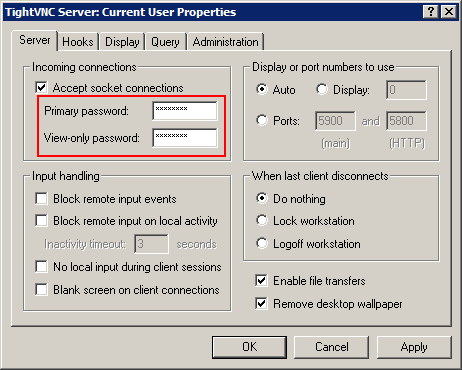
Run server (WinVNC.exe) on PC you want to access. Password must be set, rest is fine-tuning.
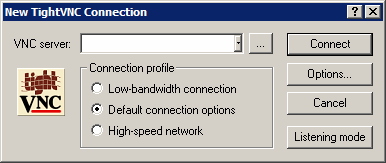
Run client (vncviewer.exe), choose connection type and input IP or host name of computer running server.
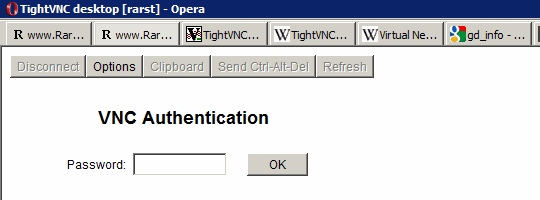
Optionally you can enable browser access in server settings (Administration > HTTP server > Enable built-in HTTP server) and access from browser via http://computerIP:5800
Security
TightVNC encrypts passwords but not rest of information. Do NOT use it over Internet for access to sensitive data without additional encryption layer – setting up which is usually more complex.
Overall
TightVNC is open source (GPL) and freeware app. I think it writes minor registry entries but works without installation and browser access option makes it more than portable. App hadn’t been updated in a long time but works perfectly fine and it’s not an issue.


Generally I use TightVNC for fixing issues on the computers throughout my house. Accessed over the LAN, I never need to get up and actually visit the computers to figure out what’s wrong with them. Plus it saves a lot of time when diagnosing little problems (when someone calls and says “My sound isn’t working”, you can easily hop on, unmute their sound and continue ;) )
However, you are completely right in stating not to use it over the internet. A lot of people don’t realize that it’s not encrypted (who reads pop-up notices these days?) and will proceed to do so.
The only thing I don’t like about this, is the fact that since I’m technically the “client” and my “server” is normally computer illiterate, they have tons of issues configuring the server. I prefer to give them a sort of one-shot configuration. Normally I point them to log me in which is pretty straight-forward.
Never-the-less TightVNC is still a great choice, especially since it’s free!
@Angelo
Yeah, TightVNC is good for techies but it’s bit hard to use when other side has to install server.
For such situations I mostly use some remote plugin Skype has. It’s bit crappy comparing to VNC solutions but easy to get it running – send request and other side only has to confirm install and then confirm access.
I didn’t know that Skype had an addon that worked like that.. that’s definitely something I need to check out. A lot of people use Skype, so this would be a great solution, Thanks!
Thanks for sharing this. I use Teamviewer for remote accessing the PC.
I tried visiting tightvnc from my office. It is blocked :(
Do you know any tool which may not be blocked at office and then i can connect to my Home PC?
@Nihar
It depends on specific setup of internet access in your office. If may work through caching proxy, blocking all but web – then nothing would work.
Maybe only specific ports are allowed, try setting TightVNC to use port 80 (http).
And remember – TightVNC is NOT safe for use over Internet out of the box.
Good Article,
Even we are using TightVNC for helping out out clients and it helps a lot in terms of no need to go at the clients place!
It also seems pretty stable and decent for graphics.
Ive a question regarding the blanking feature available on the host side.
We checked the option, but the host screen didnt blank on remote connection!
Both sides are running XP.
Are there any specific conditions for it to run?
Hope you can give inputs.
Thanks,
Mehul.
@Mehul
My home desktop just died so I can’t test that at moment. Only thing that comes to mind that there is some optional driver for better performance as far as I remember. Maybe that will help. I’ll try it in next few days.
[...] Rarst from Rarst.net is sharing software tool to Remotely access the PC with TightVNC. [...]
[...] access stuff usually either cumbersome VNC setup or quite restricted online services so I am always eager to check out new [...]
[...] VNC [...]
[...] mice only add up to confusion. There is option of running PCs headless with remote control (like TIghtVNC) but transferring screen in real time is more functional than [...]
TightVNC, is easy to install and use… Having used other VNC apps, i can vouch for this one as being the best :)
Hi sir i use tightvnc on my offic to acces my home computer but when i put my home computer ip address he goes to initialised but not connectig can you tell me whick ip address i put and connect my home computer from my office
please mail me and tell me how i connect my home computer and whick ip address i put.
Regard sir
@Azeem
You can use YouGetSignal to determine your (external) IP address and if VNC port properly configured and accessible.
Overll there can be many combinations of your home and office connection setups that interfere with VNC operation so it’s hard to say without details.